AI Logstash Assistant
The AI Logstash Assistant is a context-aware chat panel embedded in the Logstash Pipeline processor form. It uses a large-language model (LLM) to help you write, explain, and refine Logstash filter bodies without leaving the editor.
The assistant enforces two hard constraints automatically:
- It generates filter body content only — the output is meant to go directly into the filter editor and never includes an outer
filter {},input {}, oroutput {}wrapper. - It only uses well-known Logstash filter plugins:
grok,mutate,date,json,kv,geoip,ruby,drop, and standard flow-control constructs.
Opening the Assistant
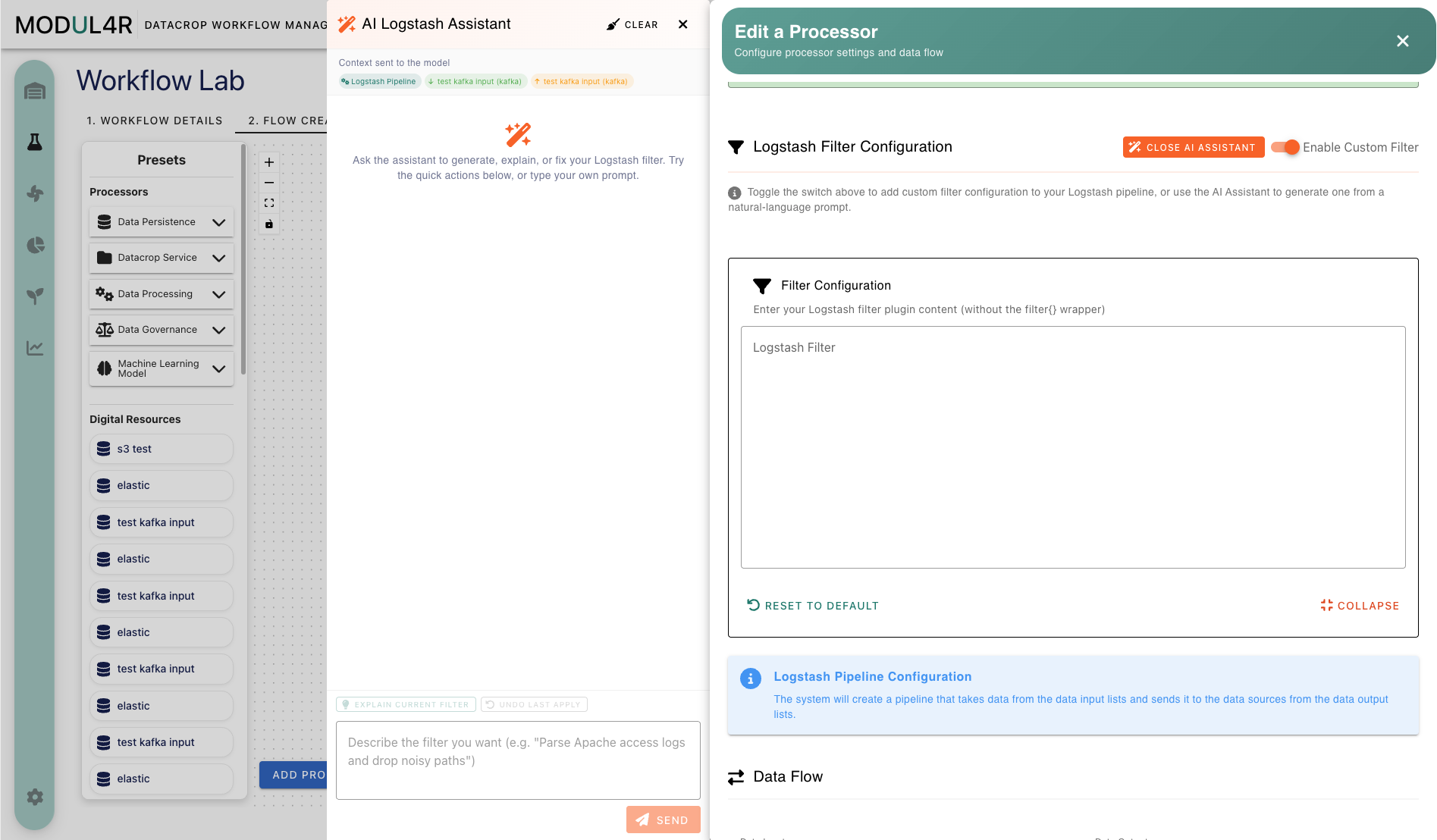
The AI Assistant button appears in the Logstash Filter Configuration section of the processor form. It is visible only when the selected Processor Type is Logstash Pipeline.
Click AI Assistant to slide the chat panel open alongside the form. The dialog widens automatically to give the panel room. Click the button again, or the close button in the panel header, to collapse it.
What the Assistant Knows
When you send your first message, the assistant receives the following context automatically — you do not need to describe your pipeline manually:
- The Processor Definition name and its parameter schema
- All configured Data Input Digital Resources: their names, interface types, and parameter values (e.g. Kafka bootstrap servers and topic)
- All configured Data Output Digital Resources: the same detail set
- The derived environment variables that will be injected at runtime (
<INTERFACE>_<KEY>_<DIRECTION>format) - The current filter body, if one is already set
The assistant panel shows this context as chips, including the selected Logstash Pipeline processor and the configured input/output Digital Resources. This lets you write prompts like "Write a grok filter for my Kafka input messages" and the assistant already knows the topic and format context from the selected Digital Resources.
Using the Chat
Type a prompt in the message box and press Send (or Enter). The assistant responds in one of two modes:
Explanation mode (default) Plain prose that explains, describes, or answers a question. No code block is generated. Use this to understand what a filter does, ask conceptual questions, or get advice before writing code.
Code generation mode Triggered when your prompt contains an action word: write, generate, create, fix, rewrite, refactor, or modify. The assistant returns a fenced code block with an Apply to filter button next to it.
Responses stream token-by-token. A Stop button appears during generation if you want to interrupt early.
Quick actions:
| Button | What it does |
|---|---|
| Explain current filter | Pre-fills a prompt asking the assistant to analyse the existing filter body. Useful when inheriting a pipeline you did not write. |
| Clear Chat | Resets the conversation history. The pipeline context is re-sent automatically with the next message. |
Applying a Generated Filter
When the assistant produces a code block, an Apply to filter button appears below it. Clicking it:
- Saves the current filter body as the undo checkpoint.
- Replaces the filter textarea with the generated code.
- Automatically enables the Enable Custom Filter toggle if it was off.
- Shows a blue banner: "Filter updated by AI assistant" with an inline Undo button. The banner auto-dismisses after 10 seconds.
You can apply multiple suggestions in sequence — each application records the previous state as the new undo checkpoint.
Undoing an AI-Applied Filter
Two undo paths are available:
- Banner Undo — click Undo in the blue notification banner that appears immediately after applying. This is the fastest path.
- Section Undo — click the Undo button in the Logstash Filter Configuration section header (visible whenever a previous state is recorded).
Both restore the filter to the state it was in just before the most recent Apply. Only one undo step is stored at a time.
Example Prompts
| Goal | Example prompt |
|---|---|
| Parse Apache access logs | Write a filter to parse Apache combined access logs |
| Add a static field | Add a field called environment with value production |
| Parse a JSON message field | Write a filter to parse the message field as JSON and promote its keys |
| Drop health-check noise | Drop events where the path field equals /health |
| Understand an existing filter | (click Explain current filter) |
| Parse a custom timestamp | Write a filter to parse log_timestamp using the format yyyy-MM-dd HH:mm:ss and set it as @timestamp |
| Enrich with geo data | Add a geoip filter on the client_ip field |
| Rename a field | Rename the field msg to message using mutate |
Limitations
- Filter body only. The assistant cannot configure input or output sections. Those come from the Digital Resources you wire in the processor form.
- Review before saving. Responses are generated by an LLM and may occasionally contain syntax errors or use plugins not installed in your Logstash instance. Always review and test generated filters.
- No live pipeline access. The assistant has no visibility into your running Logstash instance, existing indices, or live data. It reasons from the form configuration only.
- Session-scoped history. Conversation history resets when the form is closed. Re-opening the assistant starts a fresh session (with pipeline context re-sent).
- One undo step. Only the state before the most recent Apply is stored. If you apply two suggestions, the first checkpoint is lost.