Logstash pipelines
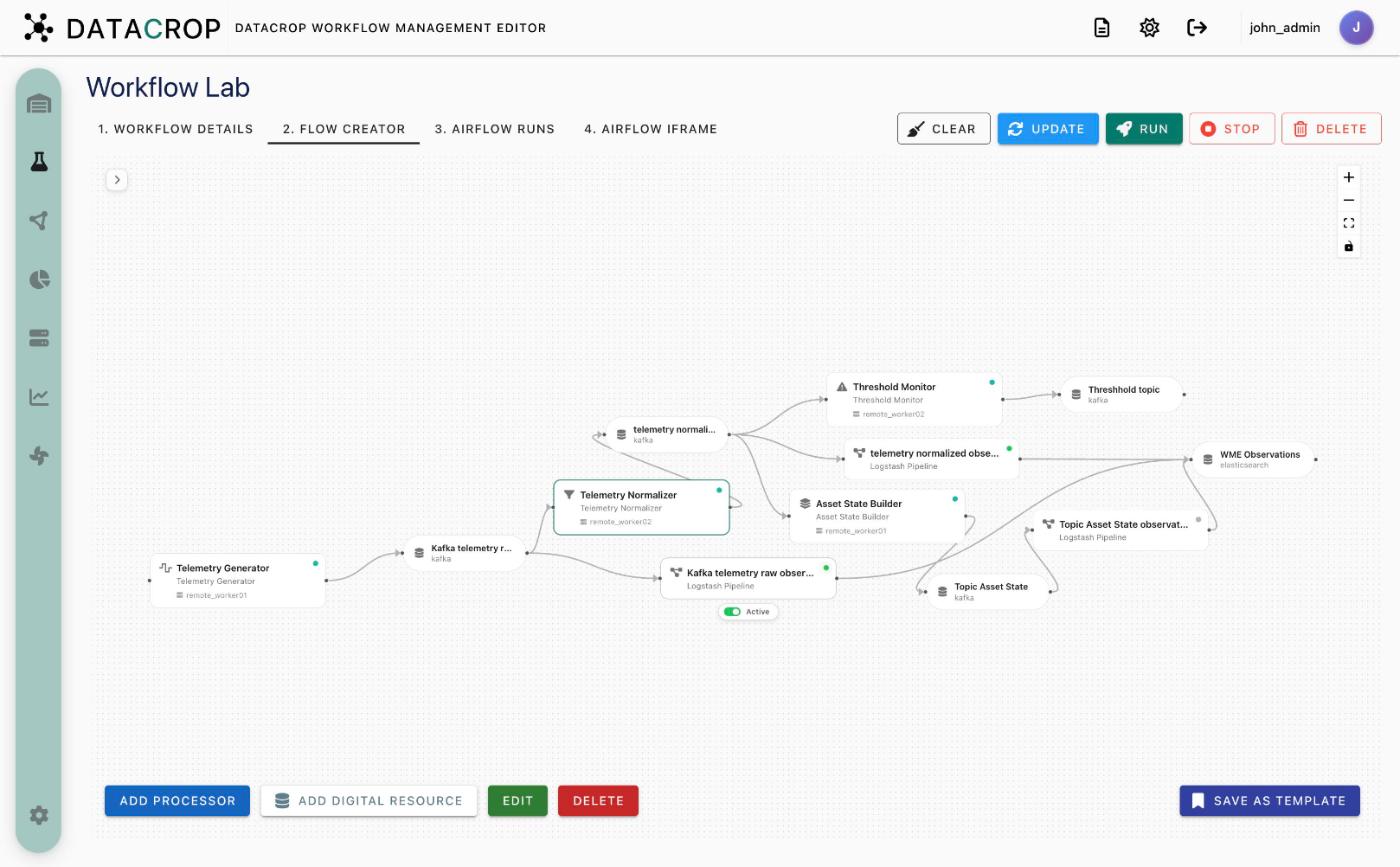
Logstash Pipeline is a built-in, WME-managed processor. Instead of running your code, it turns its connected digital resources into a Logstash pipeline: every input resource becomes a Logstash input, every output resource a Logstash output, with an optional filter in between. Use it to copy, route or reshape data — for example from Kafka into Elasticsearch — without writing a processor.
Logstash pipelines run continuously while active and do not go through Airflow or a worker: saving the processor regenerates its pipeline file and Logstash reloads within seconds.
Create one
- In the Flow Creator, drag Logstash Pipeline from Presets (category Datacrop Service).
- Connect input resources to it and connect it to output resources — only Logstash-compatible types are accepted (see below).
- Double-click it, give it a Name, and optionally write a filter (next section).
- Save / Update the workflow.
Compatible interface types
| Type | Input | Output |
|---|---|---|
elasticsearch | ✓ | ✓ |
kafka | ✓ | ✓ |
http | ✓ | ✓ |
s3 | ✓ | ✓ |
redis | ✓ | ✓ |
rabbitmq | ✓ | ✓ |
beats | ✓ | — |
mongodb | — | — |
mqtt | — | — |
The processor form and the backend both enforce this. Administrators can mark custom interface types as Logstash-compatible in Data interface types.
The filter
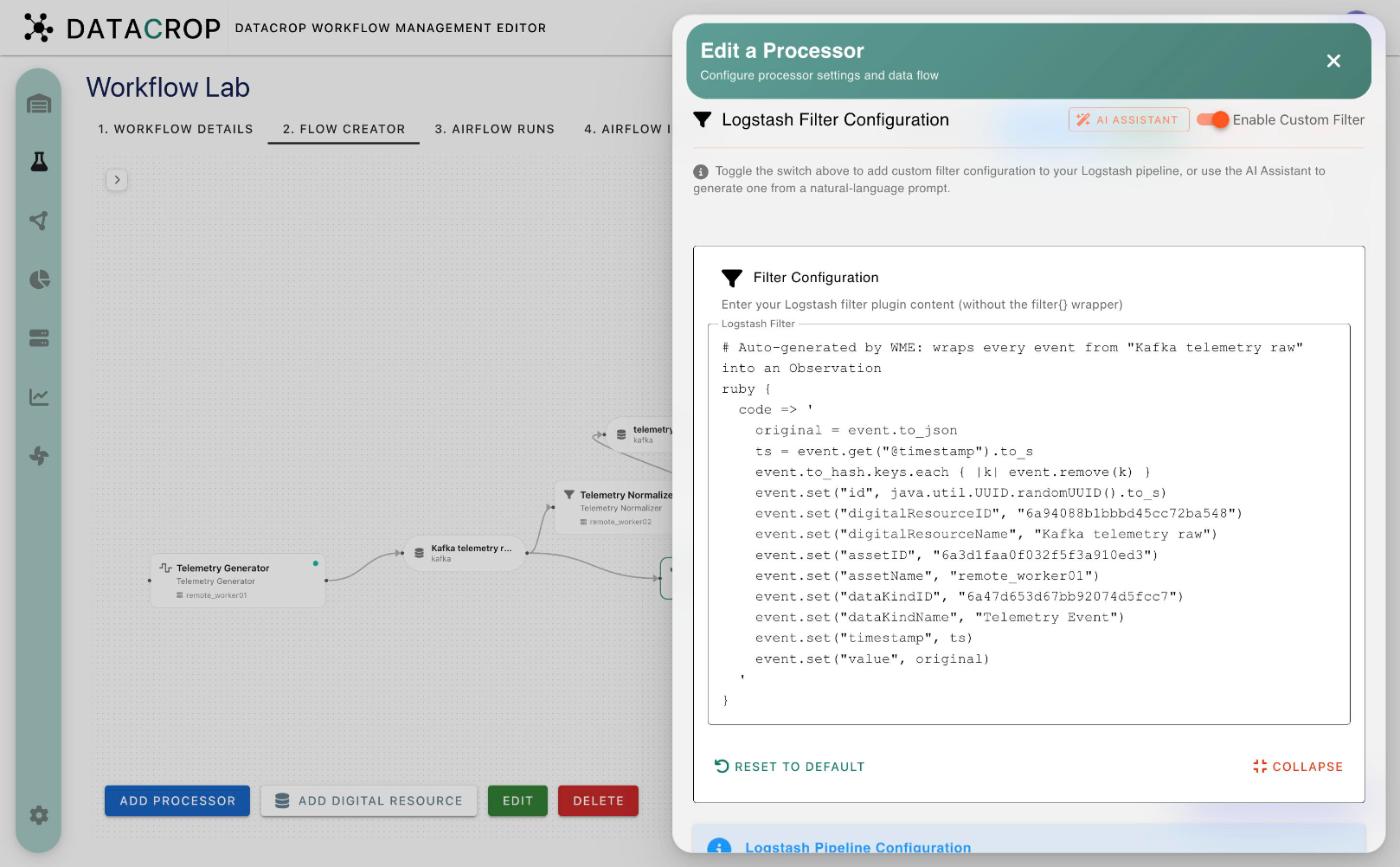
The Logstash Filter Configuration section accepts filter plugin content only — no surrounding filter { }, and no input { } / output { } blocks.
mutate {
  add_field => { "environment" => "production" }
}
date {
  match => ["timestamp", "ISO8601"]
}
Controls: Enable Custom Filter (include the filter in the pipeline), Reset to Default, Collapse, and AI Assistant, which opens the AI Logstash assistant.
Active / paused
The pipeline's active parameter decides whether Logstash loads it:
- Toggle it from the node on the canvas (hover → Active / Paused), from the Logstash Monitor, or in the processor's parameter table.
- A paused pipeline keeps its configuration; it is simply left out of
pipelines.yml. Paused nodes are drawn with a dashed outline.
Empty pipelines
A pipeline with no eligible input, no eligible output and no filter produces no file and is left out of pipelines.yml, which avoids Logstash's "Missing Filter End Vertex" error. Add an input, an output or a filter and save to create it.
Monitor it
Open Logstash Monitor to check that the pipeline is Running and that Events In / Out increase.
How the files are generated
On every save or delete of a Logstash Pipeline processor the backend:
- loads all Logstash Pipeline processors;
- resolves their eligible input and output resources from the interface-type capabilities;
- renders
<name>_<id>.conffrom a template, passing only the settings each Logstash plugin supports; - rewrites
pipelines.ymlwith the active, non-empty pipelines.
A file monitor next to Logstash detects the change and restarts Logstash. See Model Repository operations.
Troubleshooting
- A resource does not appear in Data Input / Output — its interface type is not Logstash-compatible in that direction (MQTT and MongoDB are not).
- The pipeline does not start — check it is active and has at least one eligible input, output or a filter.
- Logstash reports an error after saving — usually invalid filter syntax; ask the AI assistant to explain or fix the filter.